
Getting started
Getting Started with BUTT (Broadcast Using This Tool)
Set up BUTT for your VosCast radio stream with the right audio input, encoder mode and standard or TLS port.
On this page 6 sections
Before you begin. Screenshots show an earlier version of BUTT; the layout may differ in your version.
BUTT (Broadcast Using This Tool) sends audio from an input device to your streaming server. It is useful for a microphone, mixer, or a properly routed audio feed. It does not play a queue of music files itself; use Mixxx or VosCast Auto DJ if that is what you need.
Get ready
Download BUTT from the official website. Connect your audio device and open Overview → Live broadcasting in your VosCast account.
Stop hosted Auto DJ before connecting directly, and keep your computer and audio source running for the duration of the show.
Add your server
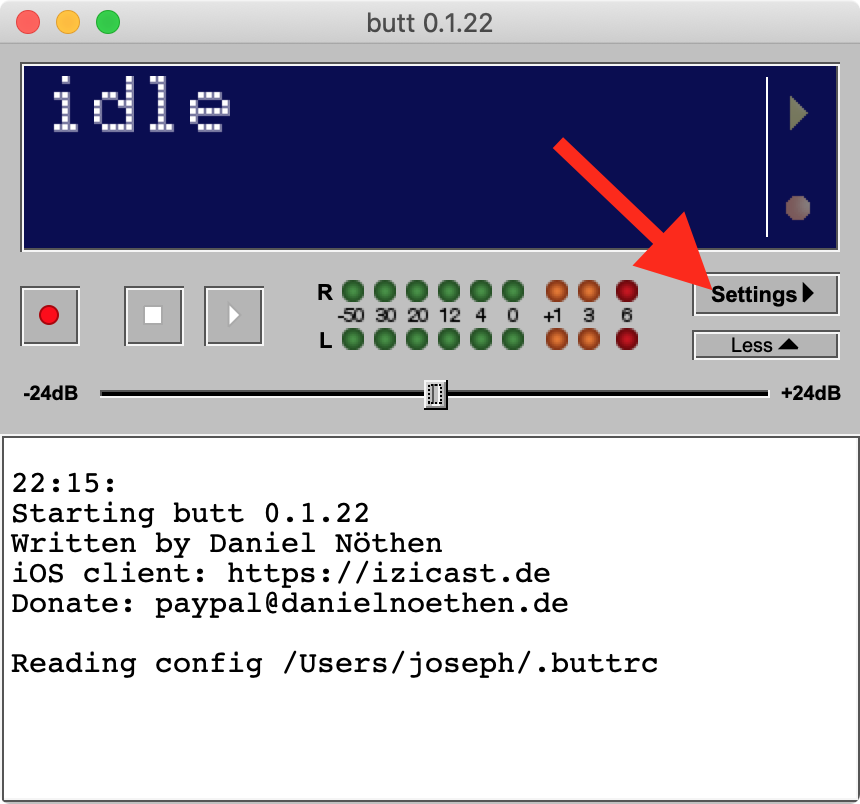
Open Settings, find Server on the Main tab, and choose Add. Give the profile a name you will recognise.
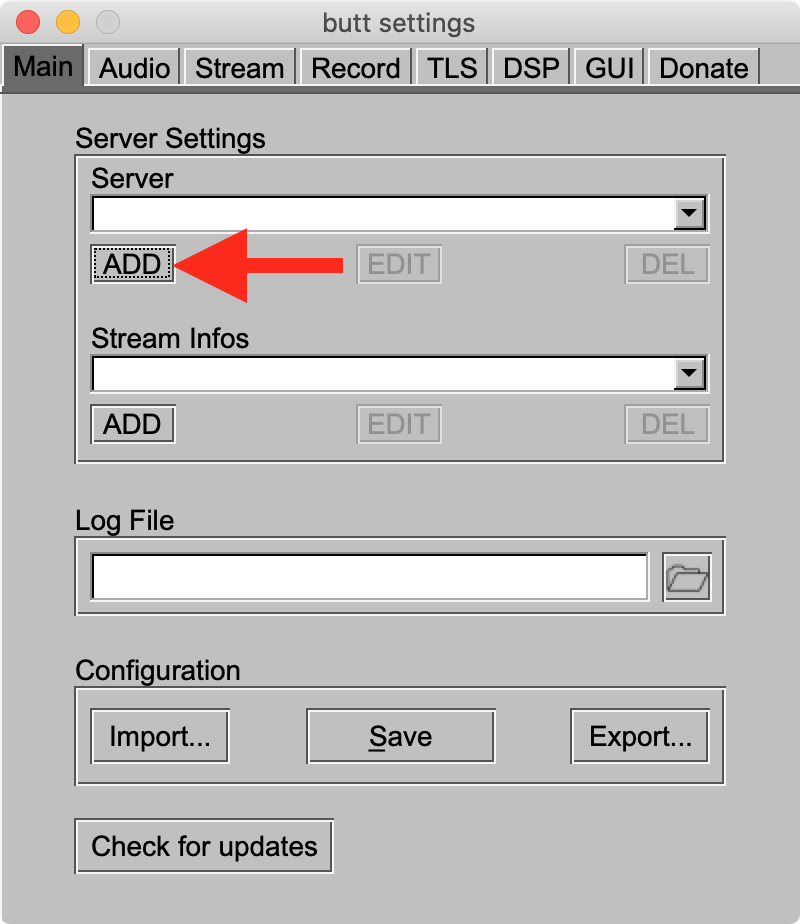
Use either mode with the default server. If you chose an Icecast or SHOUTcast server, use its matching mode.
Icecast
| BUTT setting | Your VosCast value |
|---|---|
| Type | Icecast |
| Address | Server address / Host, without http://, https://, port, or path |
| User | source |
| Password | Broadcast password; not your account or server admin password |
| Mountpoint | The exact account Mount point, normally /stream |
| Port, with SSL/TLS off | Your account's Standard port |
| Port, with SSL/TLS on | Your account's TLS port (SSL) |
Match the port and the Use SSL/TLS checkbox. Keep any existing custom mount. For TLS, use the hostname provided by VosCast; if certificate validation fails, check the hostname and contact support rather than bypassing the warning.
SHOUTcast
Choose Shoutcast and enter the account's Server address / Host and Broadcast password. Use the base port shown as Standard port or Server port (SHOUTcast) in your account. Do not use the Icecast mount or TLS settings for this profile.
BUTT uses the SHOUTcast 1 source protocol, including when a compatible SHOUTcast 2 server receives the stream. Do not add a username or stream-ID suffix to the password unless VosCast specifically supplies that format for your station.
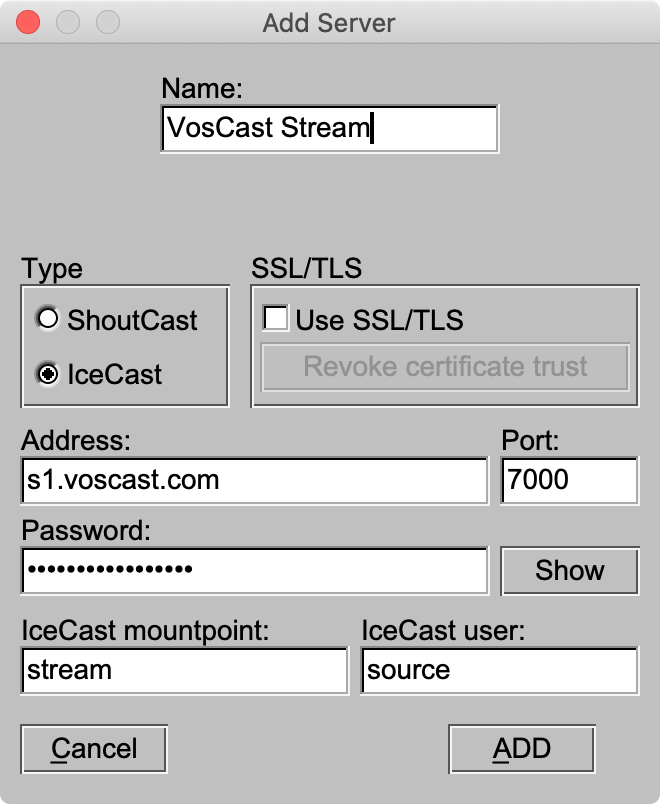
Save the server profile and select it on the Main tab.
Choose audio and stream information
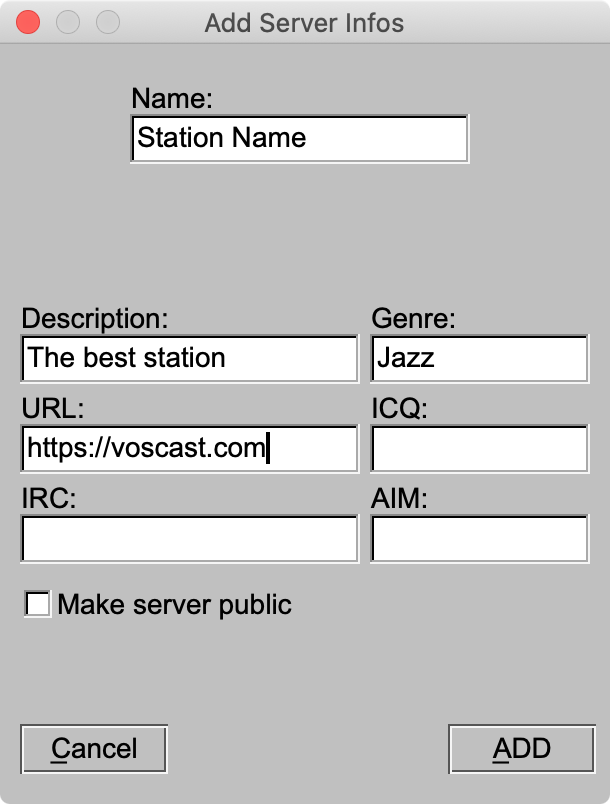
- In Stream Infos, add your station name and other details, then select that profile.
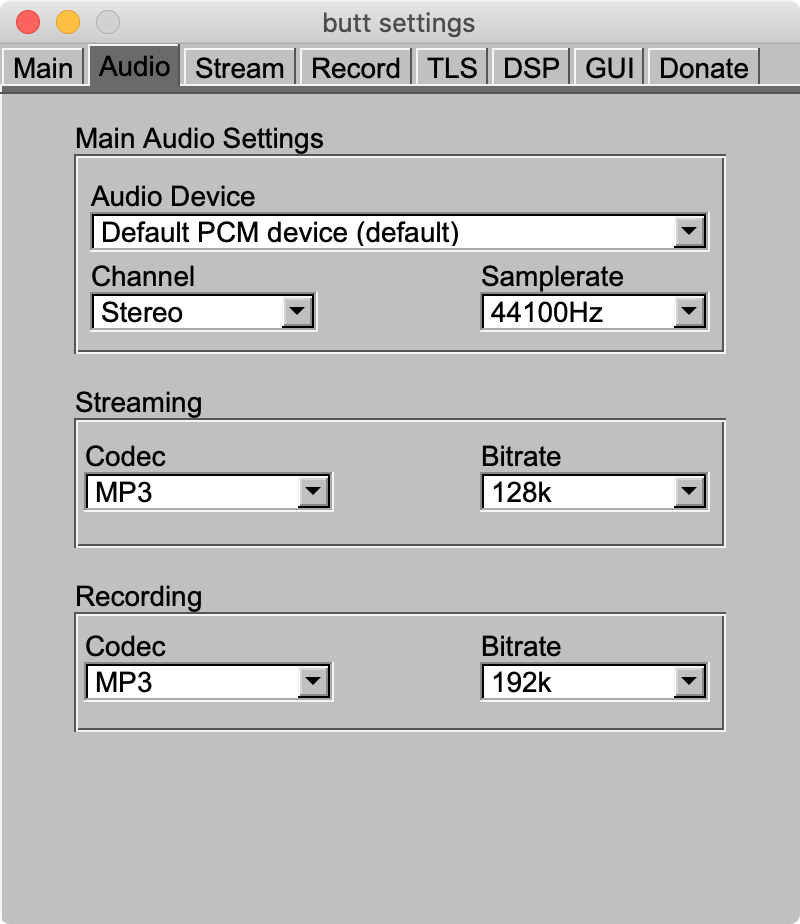
- In Audio, choose the input device carrying your programme. Check that its level meter responds before connecting.
- Set the streaming format to MP3 for this walkthrough and use a bitrate at or below the Maximum Bitrate in your account.
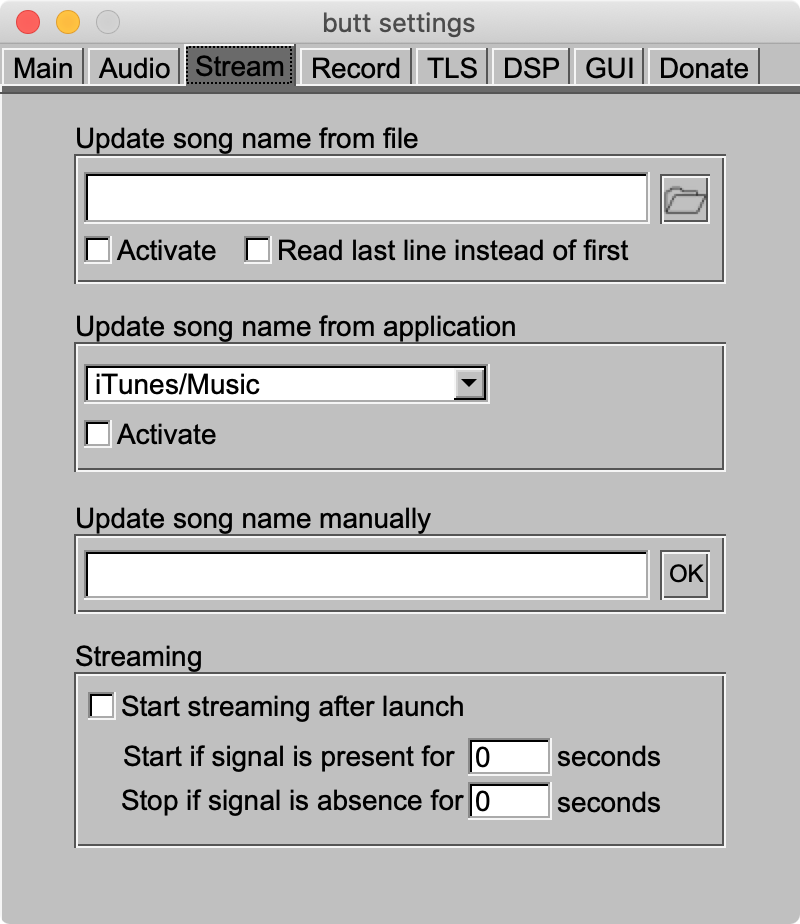
- In Stream, choose how to set the song name. Start with a manual title if you do not already have a title source configured.
Go on air
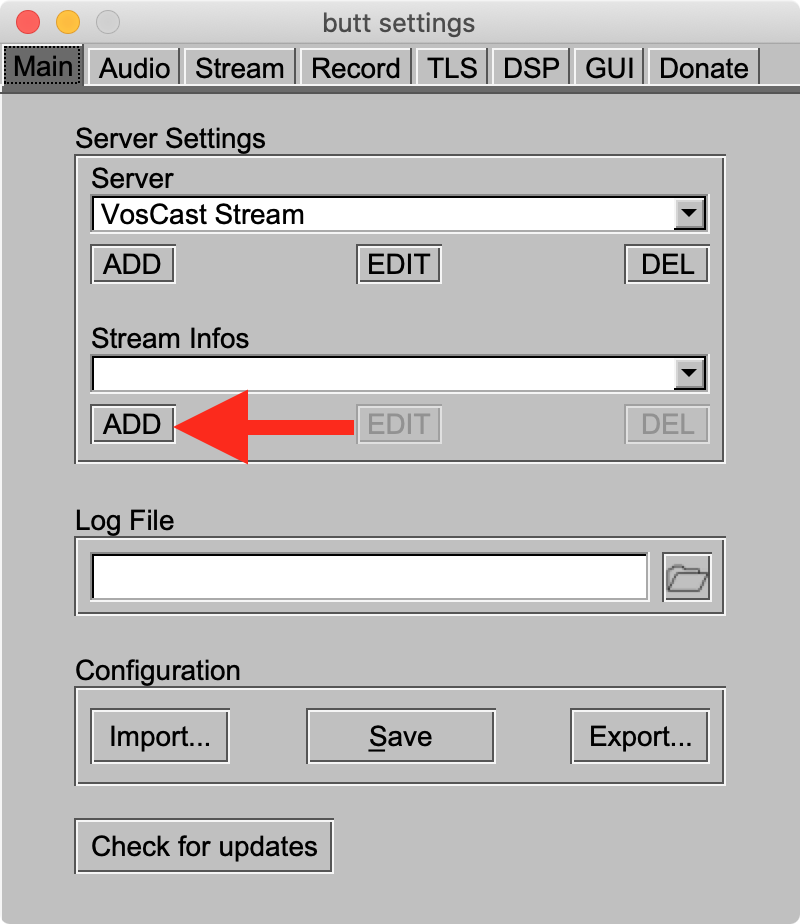
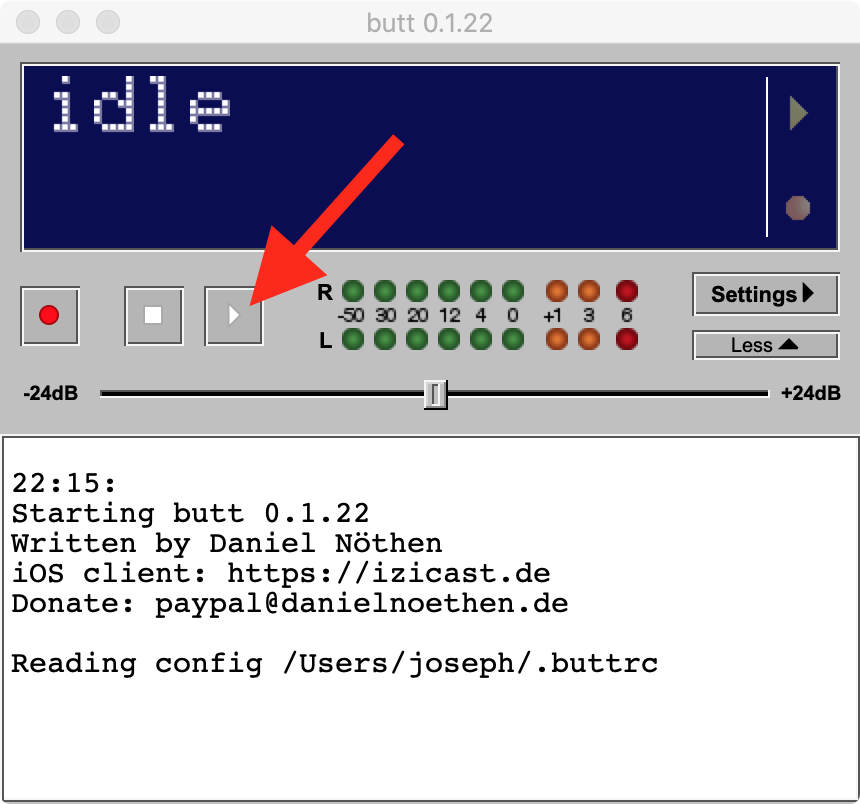
Press Play and confirm that BUTT reports a streaming connection. Open the listening link from your account on another device and check the audio. Press Stop when the show ends; restart hosted Auto DJ separately if required.
Troubleshooting
- Authentication failed: copy the broadcast password again and confirm the server type. For Icecast, verify
sourceand the mount. - Connection failed: check the host and the matching port/TLS choice. Confirm that hosted Auto DJ or another live encoder is stopped.
- Connected but silent: the selected input needs an audio signal. Playing music in another application does not automatically route that application's audio into BUTT.
- Distortion or repeated audio: reduce input gain and check routing. Monitor with headphones to avoid sending the listener output back into the broadcast input.