
Auto DJ
Getting started with the Auto DJ
Upload music to VosCast Auto DJ, organise playlists, and schedule playback using the clock and settings shown in your account.
On this page 8 sections
Before you begin. Screenshots show an earlier Auto DJ layout. Use the controls and values displayed in your account.
VosCast Auto DJ plays your uploaded audio from our servers. It works with our streaming software and with Icecast or SHOUTcast servers. Once it is running, playback does not depend on keeping broadcasting software open on your computer. This is separate from the Auto DJ queue inside Mixxx.
Open Auto DJ in your account. If it is your first visit, follow the setup prompts shown there before uploading music.
Upload and check your music
- Open Manage Music and choose Upload Songs.
- Select the MP3 files you want to add and wait for the upload result. Check any reported errors before leaving the page.
- Confirm that the files appear in the intended folder or music list.
- If you changed the music while Auto DJ was running, follow the account's stop/start notice so the new files take effect.
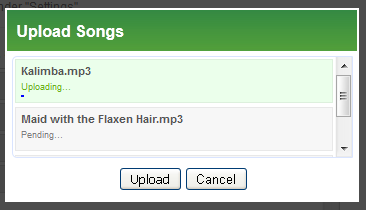
Keep your own copies of the uploaded files. Check the storage shown in your account when an upload fails; the available allowance depends on the account.
Choose the usual playback order
On Manage Music, drag tracks into the order you want and choose Save Changes. In Auto DJ Settings, Song Order lets you choose According to Playlist or Random Order.
Do not assume that the music list will always play in its displayed order: check that setting as well as any scheduled playlist events. The account can show a stop/start notice after changes.
Create a playlist
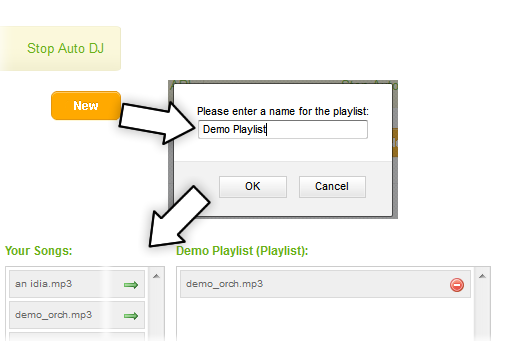
- Open Playlists and choose New.
- Give the playlist a useful name and open it.
- Use the add/arrow controls to copy tracks into the playlist.
- Arrange the playlist and save your changes.
A track can be used in more than one playlist. Creating a playlist alone does not schedule it to play; add a Scheduler event when you want it to run.
Check the clock before scheduling
Use the clock displayed on the Auto DJ pages and the Timezone and DST offset settings in Auto DJ Settings when planning events. Do not assume that it matches your computer or the time shown in an older screenshot. If your clocks change for daylight saving, pick your region in DST offset so the Auto DJ's clock changes with yours; see What timezone does the Auto DJ use?.
Add a schedule
Open Scheduler and add an event. The available actions are Start Auto DJ, Stop Auto DJ, and Play Playlist. Choose the action, time, and date or repeating days, then save the event.
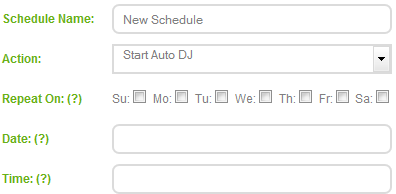
For Play Playlist, select the intended playlist and review its duration and repeat settings:
| Option | What to consider |
|---|---|
| Loop at end | Whether to restart the playlist if it ends before the event's allotted duration |
| Shuffle Playlist | Whether this event should use a shuffled playlist |
| Priority | Resolves overlapping playlist events; 1 is lowest and 9 is highest |
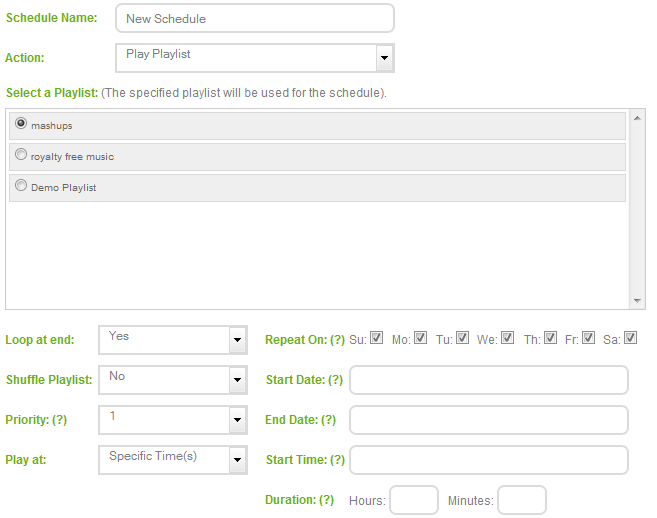
Playlist events are queued and may begin after the current track. Track length and higher-priority events can affect when an item is heard. Allow for this when scheduling short announcements or jingles.
Switch between hosted Auto DJ and a live show
Stop VosCast Auto DJ before connecting a direct live encoder such as BUTT or Mixxx. When the live show ends, disconnect that encoder and start Auto DJ again if you want hosted playback to resume.
Check the listening link in your account after either change. Do not assume that stopping the live encoder automatically starts Auto DJ.
Troubleshooting
- A new upload will not play: check that the upload finished and the file is in the right playlist. Follow the stop/start notice in your account.
- Tracks play in the wrong order: check Song Order and Shuffle Playlist. Check for scheduled events that overlap.
- An event is early or late: check the account clock and Timezone setting. Then check the event's days, date range, length and priority.
- A live encoder cannot connect: stop Auto DJ. Check that no other encoder is connected.
- There is no sound: check that Auto DJ is running and the playlist has files it can play. Open your listening link and check that it points to the right stream.