
Getting started
Broadcast Remote Interviews with Voicemeeter Banana and BUTT
Put a Zoom guest, your microphone and music on air with separate Voicemeeter Banana mixes for VosCast listeners and the guest.
On this page 8 sections
Use Voicemeeter Banana to mix your microphone, music and a remote Zoom guest, then send the programme to VosCast through BUTT. Give the guest a separate mix-minus: your voice and programme audio, without their own voice coming back through the call.
This needs Banana's two virtual output buses. The Voicemeeter Standard routing guide explains the basics, but its single B bus cannot provide both mixes in this setup.
Get ready
Install Voicemeeter Banana, BUTT and the Zoom desktop app on Windows. Restart after installing Voicemeeter's drivers. Connect your microphone and headphones before opening the applications; ask your guest to use headphones too.
Open Overview → Live broadcasting in your VosCast account for your connection details. Keep BUTT disconnected while you set up and check the call. Stop hosted Auto DJ and any other live encoder before going on air.
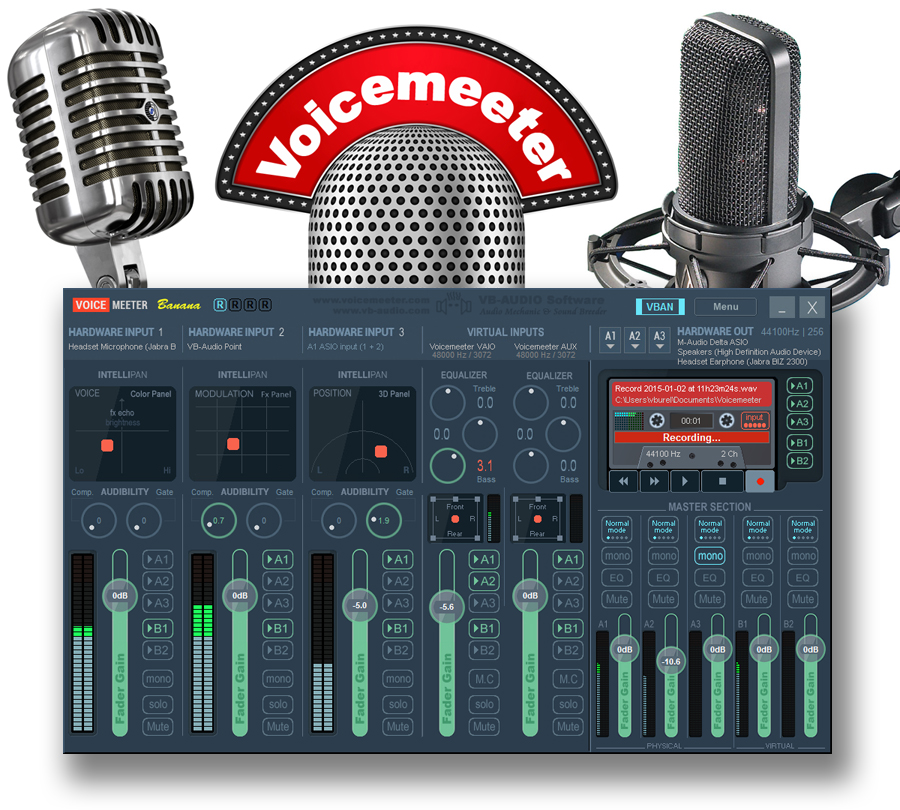
Voicemeeter Banana overview supplied by VB-AUDIO. Select the image to enlarge it. Use the routing table below for this interview setup; the product image shows example devices and settings.
Understand the three destinations
- A1: your physical headphones, for listening to the guest and programme.
- B1: the complete broadcast mix, captured by BUTT through Voicemeeter Out B1.
- B2: the guest's mix-minus, captured by Zoom through Voicemeeter Out B2.
Older drivers call Out B1 Voicemeeter Output and Out B2 Voicemeeter Aux Output. Both are Windows recording endpoints: applications capture audio from them.
Voicemeeter Aux Input is different. It is a Windows playback endpoint that sends Zoom's incoming audio into Banana's AUX strip. B2 is an output bus, not the input carrying your guest.
Connect the sources
- In Banana's Hardware Out section, choose your headphones or audio interface under A1. Start with its WDM driver where available.
- On Hardware Input 1, select your microphone. Speak and check its meter.
- Set your music player's output to Voicemeeter Input (VB-Audio Voicemeeter VAIO), either in the player or Windows Volume mixer. Play a track and check the VAIO virtual input strip.
- In Zoom Settings → Audio, select Voicemeeter Out B2 as the Microphone, and Voicemeeter Aux Input (VB-Audio Voicemeeter AUX VAIO) as the Speaker. Choose these devices explicitly rather than “Same as System.” Join the call using Computer Audio.
- Ask your guest to speak. Their audio should move the AUX virtual input meter, separately from your music.
Leave ordinary Windows playback on your physical headphones and route only the programme player into VAIO. Otherwise notifications and unrelated applications can enter the show. Check that Windows per-application routing has not overridden Zoom's selected speaker.
Set the routing buttons
Start with unused inputs muted and their routing buttons off. Apply this table to the three active input strips:
| Input strip | A1: headphones | B1: broadcast | B2: guest feed |
|---|---|---|---|
| Hardware Input 1: your microphone | Optional | On | On |
| VAIO: programme/music | On | On | On |
| AUX: Zoom guest | On | On | Off |
Keep A2 and A3 off for this setup. Leave the output buses in their normal stereo mixing mode, rather than a Composite or channel-remapping mode.
The AUX strip's B2 button must stay off. Turning it on sends the guest back into Zoom, creating their delayed echo. Changing Zoom's echo cancellation is not a substitute for separating these mixes.
Microphone A1 is optional because it only controls your own monitoring. If your interface already provides direct monitoring, leave A1 off on that strip to avoid hearing yourself twice. Keep speakers muted and Windows microphone Listen to this device off.
Zoom's mute button mutes the feed to the guest; it does not mute your microphone in B1. To keep a private conversation off air, stop BUTT or deliberately remove the relevant sources from B1.
Choose the full mix in BUTT
In Settings → Audio, select Voicemeeter Out B1 as BUTT's primary audio device. Disable secondary capture so the same microphone or guest is not added twice. Choose stereo with input channels 1 and 2.
Follow the BUTT connection guide for your VosCast profile. Use your account's host and broadcast password. For Icecast, use source, the exact mount, and the matching Standard port/TLS-off or TLS port/TLS-on combination. For SHOUTcast mode, use the base port shown as Standard port or Server port (SHOUTcast) in your account. Do not add one yourself. Select MP3 within your account's Maximum Bitrate.
The B1 and BUTT meters should respond to your voice, the guest and music. The B2 meter should respond to your voice and music, but remain silent when only the guest speaks. Balance the strips without clipping either bus.
Check the call, then go on air
Before connecting BUTT, ask the guest to confirm they hear your voice and music without their own delayed voice. Check that you hear them through A1. Run Zoom's speaker/microphone tests only off air: their tones and replay enter AUX and therefore B1.
For a speech interview, start with Zoom's normal noise processing. If music sent to the guest is being suppressed, select Original sound for musicians where available in Zoom's Audio settings or in-meeting microphone modes. Confirm the active mode and recheck the call. Leave High-fidelity music mode off unless you need it and have suitable equipment; it changes echo processing. These choices affect the Zoom call, not BUTT's MP3 setting.
Tell the guest when you are going on air, then press Play in BUTT. Check the account's Quick Listen Link on another device with headphones. Neither you nor the guest should use that delayed public stream as the interview return. Do not play it through VAIO or AUX.
Preview tracks through a separate headphones-only route. Anything played into VAIO goes to both listeners and the guest with the table above. When finished, stop BUTT and restart hosted Auto DJ manually if required.
Troubleshooting
- Guest hears an echo: turn AUX → B2 off; check for speakers, a second joined call device, or another microphone monitoring path.
- Guest cannot hear you: check microphone → B2, Zoom's Out B2 selection and Zoom mute. Hearing yourself in A1 does not prove B2 is receiving you.
- Listeners cannot hear the guest: check Zoom speaker → Aux Input, the AUX meter, AUX → B1 and BUTT's Out B1 selection.
- Guest hears music but listeners do not: check VAIO → B1; B2 only feeds the call.
- Crackling or wrong-speed audio: check device sample rates and drivers using VB-Audio's troubleshooting guide.