
Getting started
Broadcast Windows Audio and a Microphone with Voicemeeter and BUTT
Mix Windows application audio with a microphone in Voicemeeter Standard, then send the broadcast mix to your VosCast server through BUTT.
On this page 7 sections
Use Voicemeeter Standard to combine a music player's audio with your microphone, and BUTT to send that mix to VosCast. Voicemeeter controls what listeners hear; BUTT encodes and transmits it. Keep both applications and your audio player running during the show.
Before you start
Install Voicemeeter Standard from VB-Audio and BUTT. Follow VB-Audio's installation instructions and restart Windows after installing its audio driver. Connect your microphone and headphones before opening the applications.
This walkthrough uses Standard's A and B routing buttons. Banana and Potato have additional buses and different layouts.
Open Overview → Live broadcasting in your VosCast account. Stop hosted Auto DJ before connecting directly, and disconnect any other live encoder using your station.
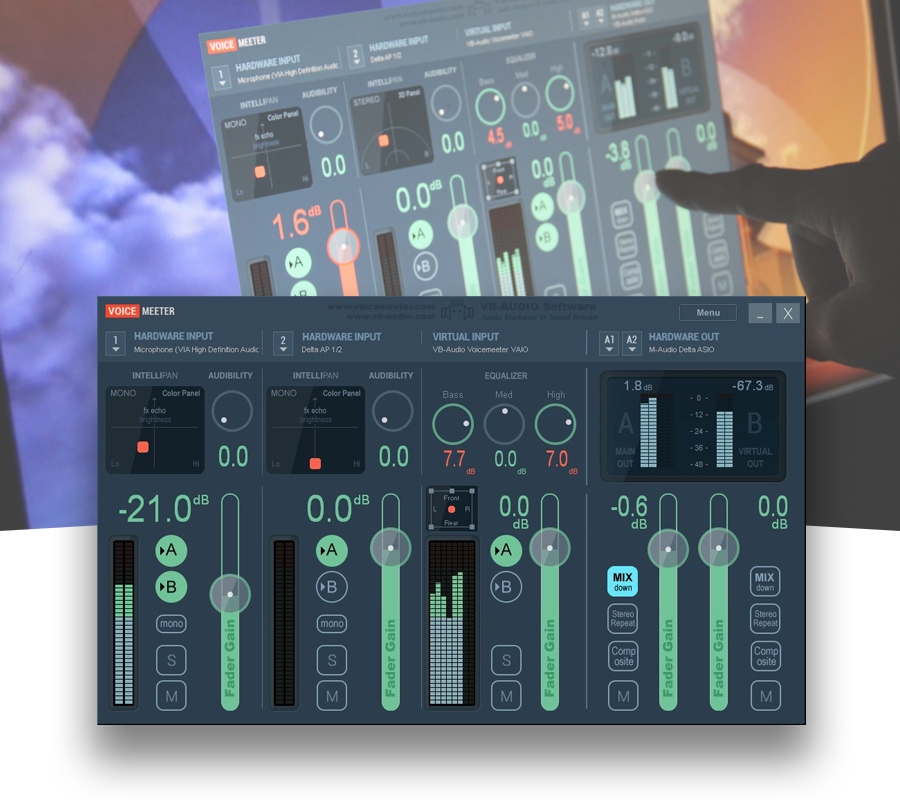
Voicemeeter Standard overview supplied by VB-AUDIO. Select the image to enlarge it. Follow the routing steps below; the pictured devices and settings are an example.
Set up your listening output and microphone
- In Voicemeeter's Hardware Out area, select your physical headphones or audio interface under A1. Start with its WDM driver when available.
- On Hardware Input 1, select your microphone's input device. Speak and confirm that its meter moves.
- Turn B on for the microphone strip. This sends your voice to the broadcast bus.
- Turn A on only if you want to hear your microphone through Voicemeeter. If your interface already provides direct microphone monitoring, leave A off on that strip to avoid hearing your voice twice.
Keep speakers muted while using an open microphone. In Windows microphone properties, leave Listen to this device off so Windows does not create a second monitoring path.
Route application audio into the mix
In Windows Settings → System → Sound, choose Voicemeeter Input (VB-Audio Voicemeeter VAIO) as the output device. This is a playback device: applications send audio into it.
Play a track and find the moving meter on Voicemeeter's Virtual Input strip. Enable A to hear it through your selected A1 headphones, and B to include it in the broadcast.
| Part of the setup | Where its audio goes |
|---|---|
| Windows playback: Voicemeeter Input | Voicemeeter's Virtual Input strip |
| Microphone: Hardware Input 1 | Its own input strip |
| B enabled on both strips | Combined programme for BUTT |
| A enabled on a strip | Your headphones through hardware output A1 |
| Windows recording: Voicemeeter Out B1 | Broadcast mix captured by BUTT |
Because this changes the default output, notification sounds and other applications can enter the same broadcast strip. Close unwanted applications, silence audible alerts, and check the output assigned to each programme. Windows Volume mixer can override an application's output device.
Do not preview your next track through the same Voicemeeter Input: listeners will hear it when B is enabled. Independent cueing needs a separate audio route. The single virtual strip in this setup does not separate applications from one another.
Select the broadcast mix in BUTT
Open Settings → Audio in BUTT. Select Voicemeeter Out B1 as the primary audio device. Older drivers call this Voicemeeter Output. It is a Windows recording endpoint, despite the word “Output.”
Keep secondary capture disabled for this setup. Select stereo with left and right channels mapped to 1 and 2. Play music, speak, and confirm both reach BUTT's meter. Balance their levels in Voicemeeter and leave room below clipping.
Follow the BUTT connection guide to add your VosCast server:
- Icecast: account host,
sourceusername, broadcast password, and exact mount point. Pair the Standard port with TLS off, or the TLS port with TLS on. - SHOUTcast: account host, displayed base Server port, and broadcast password. Do not add one to the port yourself.
Use MP3 at or below your account's Maximum Bitrate, then save the settings.
Go on air and check the result
Press Play in BUTT and confirm it connects. Open your account's Quick Listen Link on another device with headphones and check music and speech separately. Keep that delayed playback out of the broadcast computer's input.
When finished, press Stop in BUTT. Restart hosted Auto DJ manually if required. Restore your normal Windows output when you no longer need Voicemeeter routing.
Troubleshooting
- Music is missing: check the player's output, Virtual Input meter, and B button.
- Voice is missing: check the microphone device, its B button, mute state, and Windows microphone access for desktop apps.
- Voicemeeter has audio but BUTT is silent: select Out B1, not a hardware microphone or Voicemeeter Input. Rescan BUTT's audio devices after driver changes.
- Crackles or speed problems: check supported sample rates across the devices and BUTT. Use a consistent 44.1 or 48 kHz setup. Follow VB-Audio's buffer and driver troubleshooting rather than repeatedly increasing gain.
For a live guest call with a separate mix-minus, use our Voicemeeter Banana remote-interview guide.